Batch Editing Files with Vim
Vim: great for trapping your coworkers, but also a ridiculously powerful batch-editing beast. Let’s process some files from the terminal without even looking at a UI.
Here’s our victim, post.md:
---
title: Awesome tips
tags:
  - tech
---

An awesome post.
1. Quick & Dirty Command Line Edits
Need to change “tips” at the end of a line to “Tips”? Skip the interface and
just yell at Ex mode (-e) silently (-s):
vim -es -c '%s/tips$/Tips/' -c x post.md
-c: Runs an Ex command.x: Save (only if changed) and quit, quote it if you really want.wqis for people who love unnecessary disk writes.
2. When Things Get Complicated: Vim Scripts
Let’s say you want to:
- Fix that “tips$” typo.
- Inject a new
tiptag. - Sort the tags list.
Jam it all into an edit.vim file:
" 1. Fix typo
%s/tips$/Tips/

" 2. Append a tag like a civilized person (dot means "end of text")
/tags:/a
  - tip
.

" 3. Sort and uniq (:help sort)
/tags:/+1,/^---/-1 sort u

" Save and exit
x
Run it with -S (source):
vim -es -S edit.vim post.md
Or violently redirect it into standard input:
vim -es post.md < edit.vim
3. Scriptless Chaos (The Inline Way)
Too lazy to make a script file? Chain your -c commands.
To insert the tag here, we ditch a (append). Why? Because a expects a
multi-line newline-terminated block, which is a nightmare to escape in a bash
string.
Enter the put trick. put =' - tip' evaluates a literal string expression
(the =) and drops it right below your cursor. Boom. One line.
vim -es -c '%s/tips$/Tips/' -c "/tags:/put =' - tip'" -c '/tags:/+1,/^---/-1 sort u' -c x post.md
(Warning: Quoting might cause mild brain damage.)
4. xargs Will Break Your Heart
You want to edit a hundred files. Your brain says, “Hey, xargs!”
find . -name '*.md' | xargs vim -es -S edit.vim
Vim hangs, and you curse after several attempts. Why? Because vim processed the first file, closed it, then opened the second and was waiting for more inputs!
“But wait!” you say, “I’ll use -n1!”
find . -name "*.md" | xargs -n1 vim -es -S edit.vim
Congrats, it works. But now you’re spawning a brand new Vim process for every single file. If you have a massive codebase, this is glacially slow.
The Real Solution: argdo
Pass all files to a single Vim instance and let Vim iterate through them like the champ it is.
vim -es -c 'argdo source edit.vim | update' -c qa *.md
argdo: Do this to everything in the argument list.update: Save only if changed (again, disk writes!).qa: Quit all.
ipfw.net
Sent a PR to ifconfig.co for a small feature I need. No response.
2020: I wait, ping them in a week, wait forever.
2026: Just vibe one for myself! ipfw.net
joyus.org 二十岁了
不知不觉,持有 joyus.org 这个域名已经整整 20 年了。
这期间,它一直作为我个人的博客站点,换过无数个主题,折腾过好多个博客系统,最后一度沦为了只是用来 host 自己几个 VPS 配置和 VPN 安装脚本的荒芜之地。它就这样静静地荒废了好几年。
直到最近,在 AI 的加持下,我终于把这个网站彻头彻尾地重新设计了一遍。AI 时代,过去日记体的技术文章再没有保留的必要,但这种如同真实软木板一样的 Pinboard 风格,放眼天下,似乎还没发现第二个,算是给自己的一份特别的礼物。
回首这 20 年,发生的事情实在太多了。
细数一下这些年的标准打工人的生活轨迹:从租房到买房,考驾照,买车,接着结婚,换工作,再换工作;然后卖了房又变回租房,接着再买房、生子。
经历了人生的起起伏伏:曾满怀期待携娇妻幼子出国,又失意地回国。为了生活四处找工作,在一家国内企业拼了命地卷了一年,最后还是因为水土不服而选择离开。在这个过程中,拿到过 Google 的 offer,却又因为赌一个拿 L-1A 签证再去美国的机会放弃了它,选择去了一家小公司,远程工作每天十小时起,一边接送孩子买菜做饭。蓄势待发准备东山再起,结果短短四个月,就遭遇了团队裁员。
就在这个时候,运气来了。之前放弃的 Google offer 竟然又奇迹般地还可以给我。于是,作为一个大龄打工人,我第二次拖家带口踏上了出国的旅程,来到了瑞士。
时光荏苒,一晃在瑞士已经待了 9 年。整体来说日子过得还算平稳顺利,虽然遭遇了 2024 年的大裁员,但凭着运气在死线前内部找组最终还是安全上岸了。在这期间,我们在瑞士买了房,也拿到了永久居留。儿子也很争气,顺利考上了当地的 Gymi(相当于州立重点中学)。
但如今的我,似乎进入了职业倦怠期。职场上再无意突破。开始把更多的精力放回自己身上,寻找属于自己的 inner peace。
回望这 20 年,像是经历了好几次跌宕起伏的人生。接下来的 20 年,在这个名为
joyus.org 的软木板上,大概会更多的钉上生活的痕迹。
Just a Normal Grocery Run in Switzerland
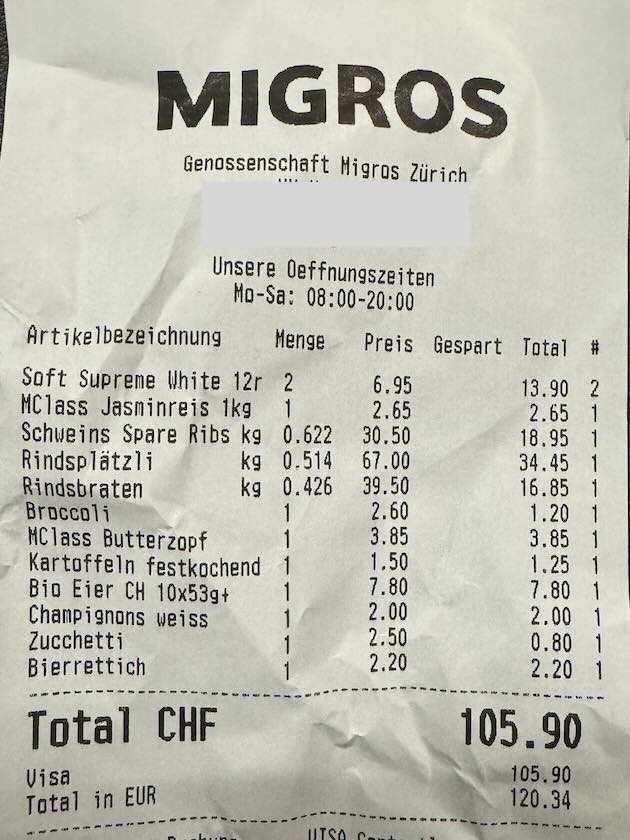
从超市购物小票一瞥🇨🇭生活成本