Batch Editing Files with Vim
Vim: great for trapping your coworkers, but also a ridiculously powerful batch-editing beast. Let’s process some files from the terminal without even looking at a UI.
Here’s our victim, post.md:
---
title: Awesome tips
tags:
- tech
---
An awesome post.
1. Quick & Dirty Command Line Edits
Need to change “tips” at the end of a line to “Tips”? Skip the interface and
just yell at Ex mode (-e) silently (-s):
vim -es -c '%s/tips$/Tips/' -c x post.md
-c: Runs an Ex command.x: Save (only if changed) and quit, quote it if you really want.wqis for people who love unnecessary disk writes.
2. When Things Get Complicated: Vim Scripts
Let’s say you want to:
- Fix that “tips$” typo.
- Inject a new
tiptag. - Sort the tags list.
Jam it all into an edit.vim file:
" 1. Fix typo
%s/tips$/Tips/
" 2. Append a tag like a civilized person (dot means "end of text")
/tags:/a
- tip
.
" 3. Sort and uniq (:help sort)
/tags:/+1,/^---/-1 sort u
" Save and exit
x
Run it with -S (source):
vim -es -S edit.vim post.md
Or violently redirect it into standard input:
vim -es post.md < edit.vim
3. Scriptless Chaos (The Inline Way)
Too lazy to make a script file? Chain your -c commands.
To insert the tag here, we ditch a (append). Why? Because a expects a
multi-line newline-terminated block, which is a nightmare to escape in a bash
string.
Enter the put trick. put =' - tip' evaluates a literal string expression
(the =) and drops it right below your cursor. Boom. One line.
vim -es -c '%s/tips$/Tips/' -c "/tags:/put =' - tip'" -c '/tags:/+1,/^---/-1 sort u' -c x post.md
(Warning: Quoting might cause mild brain damage.)
4. xargs Will Break Your Heart
You want to edit a hundred files. Your brain says, “Hey, xargs!”
find . -name '*.md' | xargs vim -es -S edit.vim
Vim hangs, and you curse after several attempts. Why? Because vim processed the first file, closed it, then opened the second and was waiting for more inputs!
“But wait!” you say, “I’ll use -n1!”
find . -name "*.md" | xargs -n1 vim -es -S edit.vim
Congrats, it works. But now you’re spawning a brand new Vim process for every single file. If you have a massive codebase, this is glacially slow.
The Real Solution: argdo
Pass all files to a single Vim instance and let Vim iterate through them like the champ it is.
vim -es -c 'argdo source edit.vim | update' -c qa *.md
argdo: Do this to everything in the argument list.update: Save only if changed (again, disk writes!).qa: Quit all.
Just a Normal Grocery Run in Switzerland
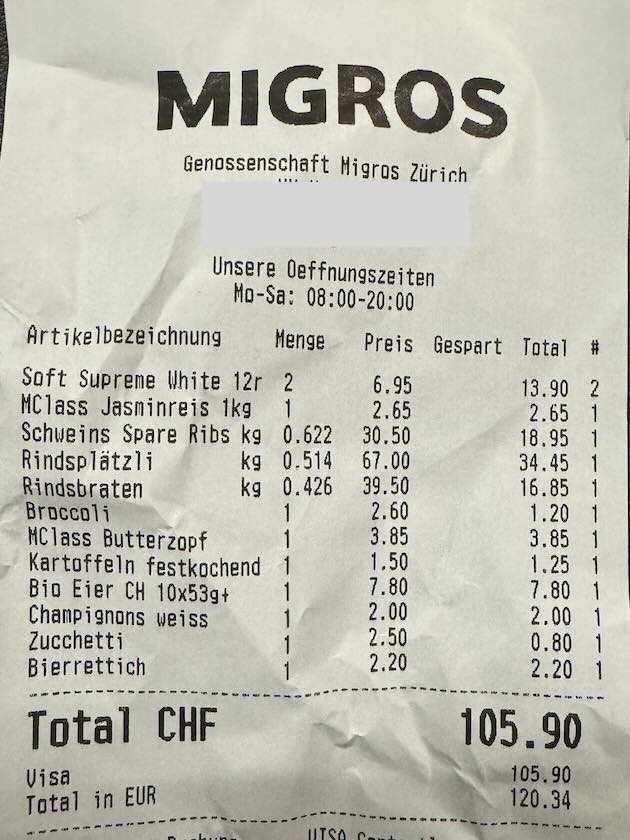
从超市购物小票一瞥🇨🇭生活成本
Jail break a privileged container
You can get full access to docker host from inside a container if it’s running
in privileged mode (docker run --privileged).
The trick is when a container is running in privileged mode the host’s /dev
filesystem will be also mounted inside the container. You just need to figure
out the right device of the host’s root filesystem and mount it inside container
then get full access to the host’s root filesystem.
You do not need to guess the device file, just look into the output from command
mount, the device is the same as where the /etc/hosts is mounted from.
# mount | grep /etc/hosts
/dev/dm-0 on /etc/hosts type ext4 (rw,relatime,errors=remount-ro,data=ordered)
# mkdir /tmp/root
# mount /dev/dm-0 /tmp/root
Now the docker host’s root filesystem is mounted on /tmp/root, you can read
and write any files of docker host as root user, and do anything you want, for
example, chroot inside and add an account, or add your ssh public key to
/root/.ssh/authorized_key to get remote access to the host.
# chroot /tmp/root /bin/bash
So be careful with --privileged option, you usually do not need this, refer to
Runtime privilege and Linux capabilities
for how to do fine grain control over the capabilities with --cap-add and
--cap-drop options instead.
Streamlining Python Popen Output
When executing a long-running shell command from a Python script (such as within a Jenkins pipeline), you often encounter a specific set of requirements:
- You need to parse or
grepthe output for specific patterns. - You need to stream the output to the terminal in real-time.
- You need to capture the final exit code.
The
subprocess.check_output
method might seem like the obvious choice:
import subprocess
import sys
try:
output = subprocess.check_output(['ping', '-c', '4', 'localhost'])
sys.stdout.write(output)
except subprocess.CalledProcessError as e:
pass
# Now search the output...
However, check_output buffers the output and only yields it after the
command has fully terminated. If you have a Jenkins job invoking a script that
runs for 10 minutes, sitting in the dark with no real-time terminal output is
unacceptable. Additionally, check_output was introduced in Python 2.7, which
poses a problem for legacy production systems (like CentOS 6) still heavily
reliant on Python 2.6.
Other common alternatives like
subprocess.check_call
or os.system don’t allow you to capture the output programmatically for
parsing.
The Solution: Non-Blocking Reads with select
To achieve real-time streaming alongside programmatic output capture in
legacy-compatible Python, you can combine subprocess.Popen with I/O
redirection and the select
module for non-blocking reads:
# foo.py
import sys
from subprocess import PIPE, Popen
from select import select
# bufsize=1 ensures line-buffered output
p = Popen('ping -c 4 localhost', shell=True, stdout=PIPE, bufsize=1)
while True:
# Non-blocking check to see if there is data to read
if select([p.stdout.fileno()], [], [], 0)[0]:
line = p.stdout.readline()
if not line:
break
sys.stdout.write(line) # You can perform your pattern matching/grep here
sys.exit(p.wait())
This ensures that output is printed immediately as it is generated, you can inspect each line programmatically, and the exit code is properly returned at the end.

Why ls output does not sort in alphabet order
在 VPS(系统为 Ubuntu 11.04)ls 总感觉列出的内容很乱,仔细一看原来是列出的内容没有正常排序:
~/ws/home $ ls -1
404.md
blog
CNAME
_config.yml
css
images
_includes
index.html
js
_layouts
_posts
pub
README.md
robots.txt
_site
ASC 码表里大写字母是在小写字母前面的,CNAME 应该排在 blog
前面,还有那些下划线开头的没有挨着明显不对。
尝试用 sort,居然得到一样的结果,难道 sort 也出问题了?这可是天天用的命令啊。。
~/ws/home $ ls | sort
404.md
blog
CNAME
_config.yml
css
images
_includes
index.html
js
_layouts
_posts
pub
README.md
robots.txt
_site
不信邪,换一个 RHEL 5.4 发现又是正常的。一时间没有头绪,感觉自己像一个白痴正在被愚弄。。
仔细研读了一会 ls 和 sort 的 man page,终于发现线索,在 sort(1) 中有这么一段:
_ WARNING _ The locale specified by the environment affects sort order. Set LC_ALL=C to get the traditional sort order that uses native byte values.
我系统的 locale 是 en_US.utf8,接下去 google 一番终于在万能的 StackOverflow 找到了权威解答:
Sort does not sort in normal order!
问题知道了,修正我的 .bashrc 解决问题:
export LC_COLLATE=C
ls 的输出终于正常了:
~/ws/home $ ls -1
404.md
CNAME
README.md
_config.yml
_includes/
_layouts/
_posts/
_site/
blog/
css/
images/
index.html
js/
pub/
robots.txt
A ksh bug on "wait"
WTF?
$ cat kshbug
{ return 0; } &
evil=$(/bin/true) # XXX: works fine without this line
wait $!
echo $?
$ ksh kshbug
127
$ ksh --version
version sh (AT&T Labs Research) 1993-12-28 r
The correct return code should be 0. Without the line of “eval=$(bin/true)” everything works fine. The problem happens only when
- Execute a function or a clause in background, and
- A subshell is invoked between the background execution and the “wait”, and
- An external command is executed in the subshell
I googled for a while, there’s no ksh bug report so far, workaround could be use output text for return code check instead. Note there’s a similar report for ksh on solaris but it’s not the identical issue.
Pdksh (public domain ksh) doesn’t have the problem. (See another bug).
Couldn’t figure out where to report this bug so gave up.
Update: this issue doesn’t happen on Ubuntu ksh version
sh (AT&T Research) 93s+ 2008-01-31.
Connect to your corp VPN with vpnc
Vpnc
是一个开源的 VPN 客户端,可以用来连接 Cisco
VPN 网关,在 VPS 上使用 vpnc 连接办公网络,可以实现在一个严格限制端口的办公网络里管理 VPS。我的 VPS 是 vpsvillage 的 32-bit
Debian 系统,最近折腾了一通,笔记记录如下。
Step 1. 首先要保证系统装有 tun 模块,不巧的是,我的 VPS 上的 kernel 模块全是 64-bit 的版本,这个应该是操作系统安装脚本的问题,联系客服后得知他们提供有 32-bit 的 kernel module 包,并且有个脚本帮助完成安装。
wget ftp://ftp.grokthis.net/pub/linux/modules/install_modules.sh
mv /lib/modules/`uname -r` /lib/modules/`uname -r`.orig
sh install_modules.sh
depmod -a
modprobe tun
Step 2. 安装 vpnc
apt-get install vpnc
Step 3. 导出 VPN 网关的配置文件
公司机器都是 windows 已经装有 Cisco VPN Client,通常在 C:\Program
Files\公司 \VPN
Client\profiles 里面就能找到配置文件。vpnc 带有一个工具可以将 pcf 配置文件直接转换为 vpnc 的配置文件,工具默认安装在
/usr/share/vpnc/pcf2vpnc,是个 perl 脚本,依赖 LWP::Simple
模块,我的 VPS 上没有这个,perl -MCPAN -e ‘install
LWP::Simple’ 等了很久也没完成,放弃。其实可直接根据 pcf 文件里面的内容,参考
/etc/vpnc/example.conf 写一个配置文件,只要 ——
Step 4. 解码配置文件中的 enc_GroupPwd
vpnc主页提供了个工具 cisco-decode 直接到那解码即可。
Step 5. 默认情况 vpnc 建立了 vpn 隧道之后会把默认网关和 /etc/resolv.conf
修改掉,如果这时候你在外网 ssh 在鼓捣这个,那 ssh 连接就会断了并且再也连不上,要用到两个配置:Target networks
和 DNSUpdate。完整的 vpnc 配置文件示例:
IPSec gateway 12.34.56.78
IPSec ID groupName
IPSec secret groupPassword
Xauth username myUsername
Xauth password myPassword
Target networks 10.0.0.0/8 192.168.0.0/16
DNSUpdate no
Step 6. vpnc 需要 root 权限,即使把它 chmod u+s 也没有用,因为它使用的一个库 libgcrypt 会在 init 的时候放弃 euid root 权限,导致不能对 tun0 设备进行 ioctl。
Step 7. 在严格限制端口的办公网络内部,在 VPS 上放一个 cgi 程序来建立 VPN 隧道即可穿透端口限制,但是通常 web 服务都是普通用户(如 www-data, nobody)运行,要调用 vpnc,需要写个 wrapper
/* VPNC.c */
#include <unistd.h>
#include <stdio.h>
int main(int argc, char **argv)
{
/* gcry_control from libgcrypt drops root euid privilege in vpnc.c */
setuid(0);
return execve("/usr/sbin/vpnc", argv, NULL);
}
然后
gcc -o VPNC VPNC.c
cp VPNC /usr/sbin/
chown root:www-data /usr/sbin/VPNC
chmod 4710 /usr/sbin/VPNC
在 cgi 程序中调用 VPNC 才能拥有 root 权限。vpnc-disconnect 也是一样。(VPN.c, VPNC-disconnect.c)
Step 8. cgi 程序的写法就各显神通了,我的 cgi 程序 是 bash 脚本,可以 URL/vpnc/q 查询 IP,URL/vpnc/<key> 建立连接,URL/vpnc/d 断开连接,相关的 lighttpd 配置(适应任何脚本):
$HTTP["url"] =~ "^/cgi-bin/.*" {
cgi.assign = ( "" => "" )
}
参考资料:vpnc-howto.xml
TETware Infinite Loop: The ksh93 Bug That Filled My Hard Drive
While using TETware as our automated testing
framework, I’ve increasingly found it to be incredibly frustrating. The ksh
API portion, in particular, feels severely outdated. Despite making numerous
local modifications, it remained clunky. Today, however, I uncovered an infinite
loop hiding within one of its core logging interfaces. After diving deep into
the issue, it turned out to be a native bug in ksh93. If this interface hadn’t
been written so poorly in the first place, this shell bug might have remained
hidden forever.
Here is the breakdown of the bug.
In ksh, the ${parameter%pattern} syntax is used to strip a suffix from a
string, while ${parameter#pattern} strips a prefix. These are commonly used to
extract directories and filenames from paths. However, when the parameter is a
multi-line string and the pattern matches the \n.*(.*).* regex format, the
shell parser completely fails:
$ cat ksh93bug
NL=$'\n'
PAT="$1"
A="Hello $NL$PAT"
echo "${A%$NL$PAT}"
A="$PAT$NL world"
echo "${A#$PAT$NL}"
$ ksh ksh93bug '()'
Hello
()
()
world
$ ksh ksh93bug 'a(b)c'
Hello
a(b)c
a(b)c
world
This bug is strictly isolated to AT&T’s ksh93, including the latest versions.
Both bash and the public domain ksh (pdksh) handle it flawlessly:
$ bash ksh93bug '()'
Hello
world
$ bash ksh93bug 'a(b)c'
Hello
world
In our specific scenario, the code executed out=$(mount) followed by
tet_infoline "$out". This immediately caused a freeze. TETware’s tetapi.ksh
script relies on %% within a loop inside the tet_output function to process
multi-line text. Because the suffix was never actually deleted due to the bug,
the loop never terminated. When I attempted to debug the freeze by enabling
set -x, the infinite loop generated logs so rapidly that it filled my entire
hard drive to 100% capacity in seconds! :P
I initially intended to report this upstream, but after struggling to find a proper bug tracker on the ksh93 homepage, I gave up. For now, I’ve just patched our instance of TETware directly.
请让 Bash PS1 有用
有些“高级”工程师、资深 Unix 用户,他们使用 bash 的时候就是一个默认的类似
bash-3.2 $
的提示符,然后干活的过程中不停的 pwd,pwd,现在我涵养好一些了,不会在旁边看着想楱他两拳了。还有人不用 $ 做提示符,偏用
>,好像他就是个黑客,然后干活的时候敲 whoami(还不是更短的 id)看自己到底是 root 还是普通用户。没错,PS1 是个很个性的东西,但是总得要让自己干活更有效率一点吧?
提示符,起不到提示作用还叫什么提示符?
我的提示符需求:
- 提示符应该能在一大堆命令输出中容易辨认。用粗体文字显示提示符比用带颜色的好,恰到好处,不喧宾夺主。
- 应当提示有后台进程。经常在 vim 的时候 ^Z 临时敲命令,完了再 fg 回去。但是经常忘记文件已经在编辑,会再次 vim 打开它,造成一些麻烦。用反显的颜色提示有后台进程不错。 bash 的 PS1 有个 \j 可以输出后台进程的个数,但是我讨厌它输出 0。
- 经常要复制当前路径、写命令过程,因此提示当前全路径是必须的,另外在这个变态 NFS 网络里面,经常会有很长的路径,
$提示符有可能跑到屏幕最右边去,命令只好折行了,费眼神。于是让上一行末尾是个表示续行的反斜线,让$和命令始终在新行开始,复制命令过程给别人也方便。
我的配置是这样的:
function job_color {
[[ -n $(jobs) ]] && echo -e "\e[7m"
}
export PS1='\e[1m\h: \w $(job_color)\e[0m\n\$ '

请 man bash,看 PROMPTING 一节。
Made a small contribution to ubuntu
Just before leaving work on Friday, I encountered a bizarre issue:
gnome-session suddenly failed to start, and the log files provided no root
cause. Today, working from home, I decided to debug it thoroughly.
The setup process was quite tedious: first, connecting to the corporate network
via VPN, then logging into the corporate machine via SecureCRT, and installing
x11vnc. Since running X applications remotely requires a local X Server, I
booted up Ubuntu in VMware, started X, and used ssh -X to enable X11
Forwarding. However, x11vnc still refused to start because the user hadn’t
logged in yet, which required configuring gdm for automatic login. I
discovered that editing /etc/gdm/gdm.conf-custom directly was the easiest
approach, adding the following snippet:
[daemon]
AutomaticLoginEnable=true
AutomaticLogin=username
#TimedLoginEnable=true
#TimedLoginDelay=10
#TimedLogin=username
After restarting gdm and continually monitoring with the w command, I
confirmed the user was logging in automatically. The script executing was
/etc/gdm/Xsession, which would immediately fail and trigger an error dialog
instead of properly reaching /usr/bin/gnome-session. I opened
/etc/gdm/Xsession, added the -x parameter to the #!/bin/sh shebang, and
redirected the execution trace by prepending:
exec 1>/tmp/x.log 2>&1
Restarting gdm again and inspecting /tmp/x.log revealed the culprit:
++ '[' '!' -d /etc/X11/Xsession.d ']'
+++ /bin/ls -F --color /etc/X11/Xsession.d
++ for F in '$(ls $1)'
++ expr '^[[0m^[[0m20xorg-common_process-args^[[0m' : '[[:alnum:]_-]\+$'
++ for F in '$(ls $1)'
++ expr '^[[0m30xorg-common_xresources^[[0m' : '[[:alnum:]_-]\+$'
...
The moment I saw those ^[[0m control characters, everything made sense. The
ls command had been aliased to /bin/ls -F --color, and the terminal color
codes were breaking the script logic. It’s surprising to see such a fundamental
oversight in a core system script! The initialization script reads from
/etc/profile and $HOME/.profile, and if either sets this --color alias,
the session launch fails. In my case, it was globally set in /etc/profile.
The fix was trivially simple: update the script to use the absolute path
/bin/ls instead of relying on the environment’s ls.
Given the headache this caused, I decided to report it to the Ubuntu bug tracker. I found that others had encountered and reported it, but hadn’t pinpointed the exact root cause, so I gladly added my findings to the ticket.
- Bug #48876: gnome-session fails when “alias ls=‘ls –color’” in .profile
Update:
Shortly after reporting this, Canonical (the company behind Ubuntu) actually mailed me 5 physical Live CDs as a thank you! Back in those early days, receiving a package of physical installation CDs all the way from across the world was an incredible feeling. It perfectly captured the pure joy and tight-knit community spirit of contributing to the early open-source movement—knowing that a few hours of debugging on a weekend could positively impact thousands of users globally.